
In the PetNid app
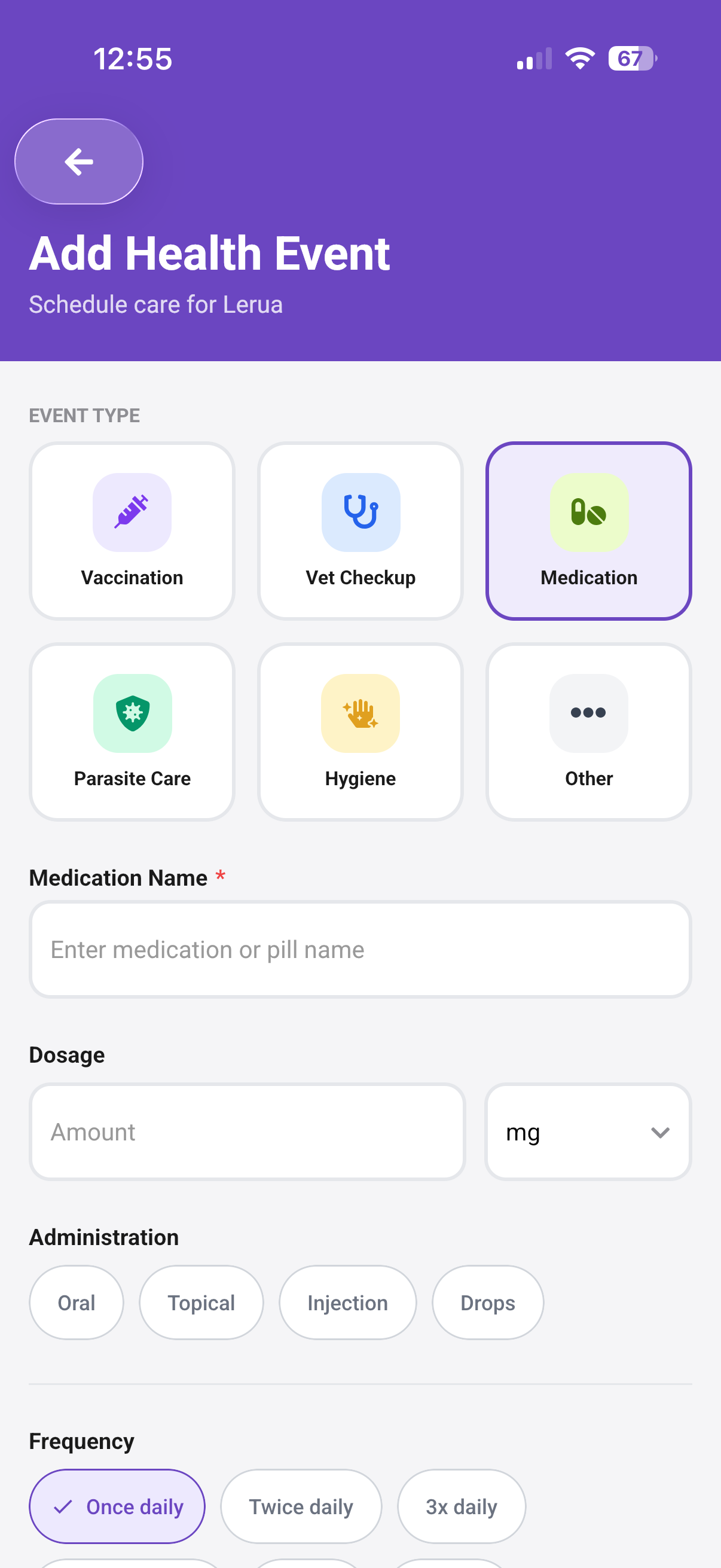
Choose Medication
Open Add Event and select Medication. Then enter the medication name, dose, unit, and how it is given.
Tap the highlighted Medication card
Prefer written instructions?
- Add the medication: select Medication, then enter its name, dose, unit, and administration method.
- Set the schedule: choose the frequency, dose time, start date, and course length.
- Choose reminders and save: select notifications, record any vet instructions, then create the medication.
- Check Home: see the next dose under Today and the active course under Soon.
- Open Timeline: find the medication in Past and expand its dose history.
- Review doses: check the recorded date and time for every completed dose.
PetNid helps you follow the schedule. Your vet decides the dose, timing, and what to do if a dose is missed.
Quick answers
Where do scheduled doses appear?
Each dose appears on your pet's Timeline. It stays visible until you mark it as given or missed.
Can several people track the same medication?
Everyone caring for the pet can use the same record. PetNid currently shows whether a dose was given or missed, but not which person marked it.
What if a dose is missed?
Follow your vet's instructions or the medication label. Do not double a dose unless your vet specifically tells you to. Record the missed dose so the history stays accurate.
Never lose track of a dose again
Set up reminders for every medication and see exactly what has been given.